Understanding VrmlFiles and the Uploader
An Easier Way to Build Worlds
The last tutorial explained how to work with the VRSpace VRObject database to place vrml files into your worlds. While this is a perfectly acceptable way to build worlds with your server, there are many parts of doing that which can be automated. This is one of the functions of the uploader. The other point of the uploader is to handle the situation where you are changing the contents of a foreign server. VRSpace has the ability to be altered by its users, but those users do not have access to the database. The uploader handles the interaction. Please note that all files uploaded with a .wrl extension are required to be uncompressed (.wrl.gz is not considered to be a .wrl extension). These files will be automatically compressed by the server during the transfer.
VrmlFile and Transform Explained
Recall that to put a vrml file into the world, you must first create a VrmlFile object, and then a Transform object that says where that VrmlFile is located in the world. Thus, a VrmlFile is something that "has" a transform (i.e. a location). It is an instance of a particular vrml file located somewhere. For example, say you had an animated door, stored in a file called door.wrl, that you wanted to use as the entrance to a couple of buildings. For each location you want to put a copy of the door, you would create a VrmlFile with the url door.wrl, and a Transform for each VrmlFile, specifying the location.
That said, when you are uploading a file to a VRSpace server, there are two possible situations. Either you are uploading the file for the first time, or you are uploading to replace a file. In the first case, by default, the uploader will not only transfer the file, but it will create a VrmlFile and Transform for you. This automates what we did in the last tutorial. If you are in the second situation, it just transfers the file and no new VrmlFile-Transform pair is created.
Taking the Uploader for a Spin
Enough! Let's try it out. First download chessboard.wrl. To start the uploader, you can use uploader.bat which you should save to the vrspace/bin directory if it doesn't already exist there. Start your server, and then invoke this file either by double-clicking on it or at the command line. First a window for for the batch file will open, and then uploading gui itself will pop up.
As you can see, there are several options available for uploading, we will get to these later. The most important fields at this moment are in the first two rows. Here you specify the host name of the VRSpace server, the port it is listening on, the login name to use, and its password. For a server on your own machine, you can choose host: localhost, and port 8500 (which is the default). Enter you login name and password, and leave all of the boxes beneath unchecked. All that is left to do is to choose the file you want to upload. Either type in the filename (if no path is chosen, the current directory will be searched), or click the "..." button to select it with a file chooser.
You cannot upload while you are logged in. Each user can have only session with the server at a time that has the power to issue commands. This is not so much of a difficulty as you might think. If you are logged in, and want to temporarily logout, simply issue the command /quit. When you are ready to log back in, just type something into the console. Now, to upload the file, click publish. You can see the results of the upload by looking at the batch file window (not the uploader itself). A successful response would look something like:
- +VrmlFile 4 upload muaddib/C\\worlds\chessboard.wrl
The + at the beginning indicates the upload was successful. The file has been stored in the VRObject VrmlFile 4. The path that you see is the actual path in which the file is stored on the server. For example, if the server has its vrspace.files.url set to c:\vrspace\tomcat\webapps\ROOT\vrspace\pub, then the file is located in:
- c:\vrspace\tomcat\webapps\ROOT\vrspace\pub\muaddib\C\worlds\chessboard.wrl
The muaddib part comes from uploading the file as the user muaddib, and the rest is the location of the file on the uploading machine. It may seem excessive to record the local path of the file in the upload, but this ensures that the files on the server are a "mirror" of the user's local file system. This will be useful later.
It didn't work!, or Common Pitfalls of Uploading
There are some very common pitfalls to upload files you should know how to deal with. If the above upload didn't work, you either had a similar response to above except with a minus indicating failure, or some other statement such as: Could not connect to localhost:8500, -login - invalid username/password, or Connection closed by server. The first response is the most serious as it means that the server accepted your login, but simply refused to allow you to upload the file. The second one means that the you either specified the host and port wrong, or the server is offline. The third is obvious.
The fourth is the real pitfall, I said it above, and I will say it again, the connection was refused because you are already logged in. If you are having difficult with uploading, and you want to see what is going on "under the hood", check the Logger box, it will give you a very thorough logging of the whole uploading procedure.
Owning a VrmlFile. Owning a Transform.
When you now log in to VRSpace as the user you chose for uploading, the Administrative GUI will pop as it did before to let set the location of the VrmlFile. So we are speaking the same language, place the VrmlFile at (0, -.5, -10), check the active box, click submit and then close. Log out, stop the server and look inside the file vrspace\bin\vrspace.db. You should see the new VrmlFile that was created, and its transform.
There is actually something more that the uploader does for you than what we did in the last tutorial. Every VrmlFile and every Transform has one or more owners. The first person to upload the file becomes its owner, and later owners can be added by the admin. The same is true for the associated Transform. Ownership offers security for the manipulation of a VRObject. Only the owner of a VrmlFile can change its properties, most importantly, its url. Only the owner of a Transform can change its x,y, and z fields.
We did not specify who owns the VrmlFile and Transform we created in the last tutorial. The server understood then that admin owned those objects, since, by definition, admin owns everything. You can see where ownership is set in vrspace.db. The information itself is stored in the AuthInfo object for the user that uploaded the file. As you scroll through the AuthInfo entries, look for the one that has its login property set to the user name you used for uploading. You will see then for this AuthInfo, that the ownedObject property contains both the VrmlFile and the Transform for the newly uploaded file. With the above example, I might see:
- AuthInfo 3 login muaddib;
- AuthInfo 3 ownedObjects [java.lang.String(org.vrspace.server.object.VrmlFile 4)(org.vrspace.server.Transform 12)];
Uploading Multiple Files At Once
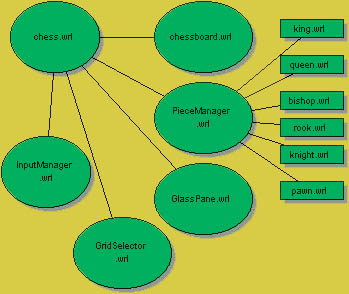
Uploading one file at a time is appropriate for small vrml objects or development where just one file is being altered at a time. However, vrml files by their very nature come in trees. Externproto, Inlines, images, all have urls that reference files outside of the vrml file in which they exist. You may want to upload all or some of the referenced files on your local disk at once. The uploader is able to do this.
Take as an example, the chess vrml application to the right. The top level vrml file here is chess.wrl. It Inlines chessboard.wrl and contains ExternProtos with Protos contained in PieceManager, InputManager, GlassPane, and GridSelector. PieceManager itself has ExternProtos for king, queen, bishop, rook, knight and pawn.
We will consider various uploading goals and learn how to modify the options available to attain these goals. The first options discussed are the Max Recursion level for the upload, and whether to upload non .wrl files. Recursion here is the repeating process of reading a vrml file, searching for the files it references, reading those files if they are vrml searching for file references, etc. The depth to which this is performed is the Max Recursion level. When we uploaded the single file chessboard.wrl before, the recursion level was set to zero. Zero recursion means that chessboard.wrl was searched for referenced files, but the files found were not searched. Basically zero recursion means that all .wrl files found are ignored for uploading. If upload non-vrml is checked though, all files without a .wrl extension (e.g. images) will be uploaded along with the file. In fact, checking that option means that whatever the recursion is set to, any non .wrl file discovered along the way is uploaded.
So we want to upload all of the files in the chess tree to the server at once. What recursion level would we need to do this? Certainly recursion can't be zero, since then only chess.wrl would be uploaded. If recursion was one, then we would still be missing the pieces. So we need recursion to be set to two or more. Let's try it out. Download chess.zip and unzip it.
Start the uploader, leave the max recursion level as zero, and select chess.wrl. Publish. You should see that only chess.wrl uploads. Try recursion level one. Now everything but the pieces upload. At recursion level two, you will see all the files. Viola. A successful upload looks something like this:
- +File 8 upload muaddib/C\\worlds\button.wrl
- +VrmlFile 6 upload muaddib/C\\worlds\chess.wrl
- +File 9 upload muaddib/C\\worlds\rook.wrl
- +File 10 upload muaddib/C\\worlds\GlassPane.wrl
- +File 11 upload muaddib/C\\worlds\queen.wrl
- +File 12 upload muaddib/C\\worlds\pawn.wrl
- +File 13 upload muaddib/C\\worlds\PieceManager.wrl
- +File 14 upload muaddib/C\\worlds\chessboard.wrl
- +File 15 upload muaddib/C\\worlds\king.wrl
- +File 16 upload muaddib/C\\worlds\knight.wrl
- +File 17 upload muaddib/C\\worlds\GridSelector.wrl
- +File 18 upload muaddib/C\\worlds\InputManager.wrl
- +File 19 upload muaddib/C\\worlds\bishop.wrl
But where are the non .wrl files that these files reference. Well, for this application, they don't exist. But if they were there, and you wanted them uploaded, they only would be sent if upload non .wrl was checked.
A quick note is needed for the Exclude EXTERNPROTO urls option. If this option is checked, then any urls found within EXTERNPROTOs are completely ignored, the file won't be uploaded, as will non of its referenced files. In the above example, checking this option would cause only chess.wrl and chessboard.wrl to be uploaded (chessboard.wrl was Inlined).
Files
Oh boy, a new VRObject to learn about! An astute, and still attentive reader, would notice that there is an unexpected word in the above server responses: File. The responses are saying that only chess.wrl was uploaded as a VrmlFile, the rest as Files. What does that mean? Remember that every VrmlFile has a Transform? Well, we don't want every one of those files sent to have a transform. We only want chess.wrl to have one, the rest are placed in the world by it. A File is really just a VrmlFile without a location in the world. It is a way to tell the server that the file exists, and to specify who owns it for future uploading, and other manipulation.
By default, the uploader asks the server to upload the top file specified as a VrmlFile and the rest as Files. What if you don't want the top level file to be sent as a VrmlFile? That is the purpose of the Upload All As File option. Consider the situation now where you have previously uploaded the chess app, and have changed the PieceManager.wrl a bit, and made some of the piece look different. You went to send the changes. You could do this by selecting PieceManager.wrl as the file to upload, with MaxRecursion 1, and with Upload All As File checked. If you didn't check Upload All As File, then PieceManager.wrl would be sent as a VrmlFile and given a Transform... oops. The successful upload might look like this:
- +File 9 upload muaddib/C\\worlds\rook.wrl
- +File 11 upload muaddib/C\\worlds\queen.wrl
- +File 12 upload muaddib/C\\worlds\pawn.wrl
- +File 13 upload muaddib/C\\worlds\PieceManager.wrl
- +File 15 upload muaddib/C\\worlds\king.wrl
- +File 16 upload muaddib/C\\worlds\knight.wrl
- +File 19 upload muaddib/C\\worlds\bishop.wrl
In Conclusion
We have covered a great deal of ground. The objects we have learned about File, VrmlFile, and Transform are the heart of scene authoring with VRSpace. The uploader is a nice way of getting them into the server. There are a couple of other ways to use the uploader. There is a command line version of it for automated uploads, and the uploader can be accessed directly through editors such as Chisel, and white_dune. Look in the Adminstrator's Quick Instructions section for instructions.